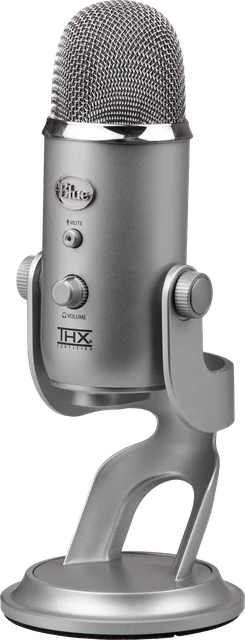
How to read your mic test
Press Start, allow the microphone, and talk the way you would on a call. The bar shows the level in dBFS, decibels relative to full scale. 0 dBFS is the loudest value the mic's converter can produce, so every reading is negative. It measures the digital signal, not how loud the room is.
- Level (RMS) is the average over the last 50 ms. Normal speech should sit between about -30 and -12 dBFS.
- Peak is the highest single sample, held for two seconds. Keep it below -3 dBFS.
- Clipping counts moments where the signal hit full scale for several samples in a row. Any clipping means distortion, so lower the gain.
- Speech level is the median level while you talk, so short pauses do not drag it down.
- Noise floor is the level in silence, measured in the 3 second quiet step. Under -60 dBFS is quiet, above -45 dBFS is noisy.
- SNR is speech level minus noise floor. 30 dB or more sounds clean.
The spectrum shows which frequencies the mic picks up right now. A clean mic shows energy well past 10 kHz when you say "s". If everything stops at about 4 or 8 kHz, the input is limited to call quality, which usually means a Bluetooth headset in hands-free mode. During the quiet step the page also looks for sharp peaks at 50 or 60 Hz and their multiples, the sign of electrical hum.
Browser processing is off by default so you see the raw signal. Call apps use echo cancellation, noise suppression and auto gain, so record one take with the boxes off and one with them on to hear the difference. Some processing sits below the browser and cannot be switched off from a web page: Windows audio enhancements, Realtek or manufacturer effects, NVIDIA Broadcast, Krisp, and Voice Isolation on a Mac.
Mic not working? Fix it step by step
Windows 11 privacy settings
Open Settings, Privacy and security, Microphone. Turn on "Microphone access", "Let apps access your microphone" and "Let desktop apps access your microphone". Chrome, Edge, Firefox, Discord and Zoom count as desktop apps, so the last switch matters most. If the meter shows pure silence, this is the first thing to check.
Pick the right default device
In Settings, System, Sound, choose your mic under Input and speak: the bar there should move. Raise "Input volume" if the level here is low. In the old Control Panel sound window (Recording tab), right click the mic, open Properties, and check the Levels tab for a boost setting and the Advanced tab for "Allow applications to take exclusive control", which can lock other apps out.
Discord, Zoom and Teams
Each app has its own input setting. In Discord it is User Settings, Voice and Video, Input Device. In Zoom, Settings, Audio, Microphone. In Teams, Settings, Devices, Microphone. Choose the same device that worked here rather than "Default", check the app's own input volume, and turn off push to talk if you do not use it. Only one app can use some USB mics at a time, so close the others.
Headset mic on PS5 and Xbox
On PS5, go to Settings, Sound, Microphone, pick the input device and adjust the level, and check the mute button on the DualSense (its light should be off). On Xbox, open Settings, General, Volume and audio output, and check chat mixer and mic monitoring. A headset plugged into the controller needs a 4-pole (TRRS) plug; a PC headset with separate mic and headphone plugs needs a splitter.
Mac System Settings
Open System Settings, Privacy and Security, Microphone, and turn on your browser. Then go to Sound, Input, choose the mic and raise the input volume until the bar moves while you talk. Restart the browser after changing the privacy switch.
Browser site permission
If the browser blocked the mic, click the icon left of the address and set Microphone to Allow, then reload. In Chrome you can also open Settings, Privacy and security, Site settings, Microphone, and pick the right default mic there. On iPhone and Android, allow the microphone for the browser app itself in the phone's settings. Once your mic is sorted, check your speakers or headphones with the sound test.
Questions
How do I test my microphone online?
Press "Start microphone test" above and allow the microphone when your browser asks. Talk normally and watch the level meter. Then press "Stay quiet" to measure the background noise, and "Record" to hear yourself back. The verdict under the meter tells you what to change.
What is a good microphone level in dBFS?
For normal speech, aim for a level between about -30 and -12 dBFS on the meter, with peaks that stay below -3 dBFS. Below -40 dBFS people will struggle to hear you. If the clip lamp lights or the clipping counter goes up, the input is too loud and your voice will distort.
Why does my mic work here but not in Discord, Zoom or Teams?
Each app picks its own input device. Open the app settings, find Voice, Audio or Devices, and choose the same microphone that worked here. Also check that the app is allowed to use the microphone in Windows Settings > Privacy and security > Microphone, and that you are not muted in the app or with push to talk.
Why does my Bluetooth headset sound bad when the mic is on?
Opening a Bluetooth headset mic switches it to the hands-free profile. The mic is limited to 8 or 16 kHz sampling and the headphone sound turns mono and muffled while any app uses the mic. This page flags it when the mic only delivers sound up to about 4 or 8 kHz. Use a separate mic, a USB headset or one with its own 2.4 GHz dongle.
Is my voice recorded or uploaded?
No. The level, noise and spectrum are calculated in your browser. A recording only exists if you press Record, it stays in this tab, and it is deleted when you close the page. The page has no server to send it to, and its security policy blocks uploads.
What is the noise floor and what is a good SNR?
The noise floor is the level the mic picks up when nobody talks: fans, the room, and the mic's own hiss. SNR (signal to noise ratio) is your speech level minus that floor. 30 dB or more sounds clean, 20 to 30 dB is fine for calls, and under 20 dB the noise is easy to hear.
Should I turn noise suppression and echo cancellation on?
For calls, yes, apps like Zoom and Discord use them all the time. For an honest level reading, leave them off here, which is the default. Turn them on and record a second take to hear what your browser's processing does to your voice.
Why does the meter show nothing at all?
If the page reports pure digital silence, the mic is usually muted by a switch or key on the headset, blocked in Windows privacy settings, or a different input is selected. Pick another device in the list, check the mute switch, then follow the Windows or Mac steps on this page.
Does the mic test work on iPhone and Android?
Yes. Open the page in Safari or Chrome, press Start and allow the microphone. Safari does not let pages switch off noise suppression or auto gain, so levels on an iPhone may be processed. If nothing happens, allow the microphone for the browser in your phone settings.
More tests
 Sound testLeft and right speakers, frequency sweep and bass
 Mouse testCheck every button, side buttons and the scroll wheel
 Keyboard testPress every key, with ISO, AZERTY and QWERTZ layouts
 Controller testButtons, sticks, triggers and vibration for any gamepad
 Webcam testResolution, real frame rate and a snapshot
 Dead pixel testFull screen colours to spot dead and stuck pixels