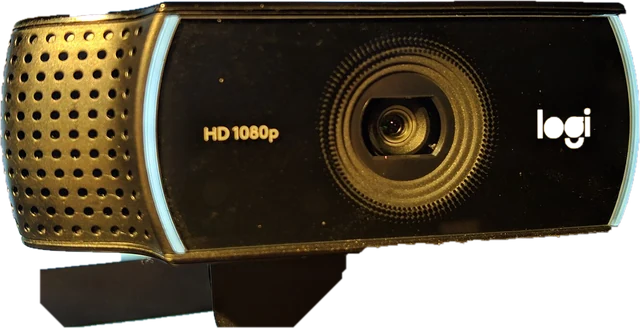
How to read your webcam result
Press Start camera and allow access. After about 11 seconds the test has counted every frame for 10 full seconds and shows the average and the slowest second. The four boxes tell you different things.
- Resolution is the size of the picture the camera really delivers, read from the video itself, not from the box it came in. A "1080p" camera that shows 1280 x 720 here is running in a lower mode.
- Frame rate is counted, not copied from the driver. In Chrome and Edge the page counts the frames the camera sends. In Firefox and Safari it counts frames shown on screen, so a 60 fps camera on a 60 Hz screen reads at most 60. The line under the boxes says which method your browser used.
- Light is the average brightness of the picture. It explains most bad webcam images and most frame rate drops.
- Camera is the device name your system reports, with a note if it looks like a virtual camera.
Why your camera drops frames in low light
A webcam sensor is tiny. When the room is dim, the camera keeps each frame exposed for longer to collect enough light. At 1/30 of a second per frame it can still do 30 fps; at 1/15 it can only do 15. That is why the same camera looks smooth by a window at noon and choppy at night. If the test shows a frame rate well under what the camera reports and the Light box says Dim or Too dark, add light in front of you before you buy a new camera. A desk lamp bounced off a wall, or the white screen on a second monitor, is often enough.
Supported resolutions
"Find supported resolutions" switches the camera through six common modes and records which ones open and at what frame rate. In Chrome and Edge the browser is told not to scale, so a Yes means the camera itself offers that mode. Some browsers quietly scale a bigger picture down, and the note under the table says so when that applies. This is a list of modes your browser could open, which can be shorter than the spec sheet: many 4K webcams only give 4K through their own app.
Virtual cameras
OBS Virtual Camera, Snap Camera, NVIDIA Broadcast, Camo, DroidCam, Iriun and similar apps add a software camera next to your real one. Video apps sometimes pick it by default, and if its app is not running you get a black or frozen frame. The test flags these by name. Pick your physical webcam in the Camera menu to compare.
Lighting and framing for calls
- Put the main light in front of you and slightly above eye level. A window behind you turns your face into a silhouette.
- Raise the camera to eye level, about an arm's length away, with a little space above your head.
- Wipe the lens. Fingerprints make the whole image soft and hazy.
- Use the snapshot at full resolution to judge focus and colour; the live preview is scaled down.
Webcam not working? Fix it step by step
Windows 11 camera privacy
Open Settings, Privacy and security, Camera. Turn on Camera access, Let apps access your camera, and Let desktop apps access your camera. Chrome, Edge and Firefox count as desktop apps, so the last switch matters.
Camera used by another app
If the test says the camera is busy, another program holds it. Quit Zoom, Teams, Discord, OBS, Skype and any manufacturer app, including from the system tray, then press Start again. A restart clears a camera stuck in use.
Privacy shutter or camera key
Many laptops have a small slider over the lens or a key with a camera icon, often one of the F keys, sometimes with Fn. A shutter gives a black picture; a camera key can make the camera vanish from the list entirely.
Mac permissions
Open System Settings, Privacy and Security, Camera, and turn on your browser. Quit and reopen the browser after changing it. In Safari, also check Safari Settings, Websites, Camera.
Browser site permission
Click the camera or lock icon at the left of the address bar and set Camera to Allow, then reload. If you blocked the camera earlier, the browser will not ask again until you change this.
Pick the right camera in Zoom, Teams or Discord
If the camera works here but not in a call, the app is using another device. In Zoom go to Settings, Video, Camera. In Teams open Settings, Devices, Camera. In Discord open User Settings, Voice and Video, Camera. Choose the same camera name you see in the Camera box above.
Related screen tests
Checking a new monitor too? Run the dead pixel test and the refresh rate test.
Questions
How do I test my webcam online?
Press "Start camera" above and allow the camera when your browser asks. You see a live picture, the resolution the camera really delivers, and a frame rate counted over 10 seconds. Nothing is recorded or uploaded.
Why does my 1080p webcam show 720p?
Usually the camera is on a USB 2 port, a hub or a long extension that cannot carry 1080p, or the browser picked a lower mode. Choose 1920 x 1080 in the Mode menu, plug the camera straight into the computer, and press "Find supported resolutions" to see which modes it can open.
Why is my webcam frame rate low?
Dim light is the most common reason. In low light the camera keeps each frame exposed for longer, so 30 fps can drop to 15. Add light in front of you and the rate goes back up. Other apps using the camera and slow USB connections also lower it.
Why is my webcam not working in the browser?
Check three things in order: the browser has permission for this site (the camera icon in the address bar), the operating system lets apps use the camera (Windows Settings or macOS Privacy and Security), and no other app such as Zoom, Teams or OBS is holding it. A closed privacy shutter or a camera key on the keyboard gives a black picture.
Is this webcam test private?
Yes. The picture is shown only in this page and never leaves your device. Snapshots are saved only if you press Download. The camera turns off when you press Stop, switch tabs or leave the page.
What is a virtual camera?
A software camera such as OBS Virtual Camera, Snap Camera or a phone-as-webcam app. It shows up next to your real webcam. If you see a black or frozen image, you may have picked a virtual camera whose app is not running.
Can I test the camera on my phone?
Yes. Open this page in Safari or Chrome on the phone, press Start and allow the camera. Use the Camera menu to switch between the front and back cameras.
Does this test my microphone too?
No. This page only asks for the camera. Video calls also need a working microphone, which you can check separately in your call app settings.
More tests
 Mouse testCheck every button, side buttons and the scroll wheel
 Keyboard testPress every key, with ISO, AZERTY and QWERTZ layouts
 Controller testButtons, sticks, triggers and vibration for any gamepad
 Mic testLevel, clipping, noise floor and a playback check
 Dead pixel testFull screen colours to spot dead and stuck pixels
 CPS testClicks per second in 1, 5, 10 or 60 seconds