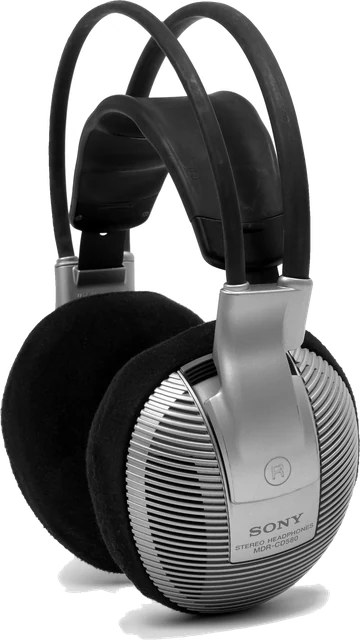
How to use the sound test
Turn the system volume down to about a third, press a button, then raise the volume until the sound is clear but comfortable. The slider above sets how loud the test signals are inside the page, so you can keep your system volume where it normally is. Nothing plays until you press a button, and "Stop all sound" silences everything.
Every result on this page is a listening check. A browser can generate an exact signal, but it cannot hear what comes out of your speakers. You are the measuring instrument, so test in a quiet room and compare against a second pair of headphones if something sounds wrong.
Left and right
The left button sends noise bursts only to the left channel, the right button only to the right. Noise is easier to locate than a pure tone, so a swapped or dead channel is obvious. "Pan left to right" glides the sound across the stereo field; it should move smoothly, without jumping or dropping out in the middle.
Frequency sweep and fixed tones
The sweep glides from 20 Hz to 20 kHz on a logarithmic scale, so each octave takes the same time. Press the button when you stop hearing it to see roughly where your hearing, or your speakers, give out. Laptop speakers usually fade below about 150 Hz, and many Bluetooth codecs roll off above 15 to 16 kHz. Use the fixed tones to hold one frequency, for example 1 kHz to compare the loudness of the two sides.
Bass rattle
The bass sweep moves slowly from 20 to 200 Hz. At some frequencies a loose screw, a cable, the desk or a window will buzz along. Mark each rattle, fix or move the culprit, then sweep again. If the speaker itself buzzes at every frequency, the cone or surround may be damaged.
Polarity
With speakers wired correctly, both cones move outwards together and the sound forms a solid image in the middle. If one speaker has its + and - wires swapped, the bass cancels and the sound seems to come from everywhere. Compare the two buttons: the in phase version should be the fuller one.
Troubleshooting
One side is silent
Check the balance before blaming the hardware. In Windows 11 open Settings, System, Sound, click your output and look at the Left channel and Right channel sliders. On a Mac, centre the Balance slider in System Settings, Sound, Output. Turn off Mono audio in accessibility settings. Then swap the cable, push a 3.5 mm plug fully in, and try another port. If the same ear stays silent on another device, the headphone is faulty.
Crackling or distortion
Lower the test volume first: if crackling stops, the speaker or the amplifier was simply overdriven. If it stays at low volume, try another USB port or cable, update or reinstall the audio driver, and in Windows set the output format (Sound, your output, Output settings) to 24 bit, 48000 Hz. On laptops, a busy CPU or power saving can cause clicks; plug in the charger and close heavy apps.
Bluetooth delay
Bluetooth headphones add delay, roughly 100 to 300 ms with standard codecs. Run the delay check: if the click lands clearly after the flash, that is the lag you hear in games and videos. Video players usually compensate, games and calls often do not. Low latency codecs (aptX Low Latency, LC3), gaming headsets with a USB dongle, or a cable fix it. Also note that when an app opens a Bluetooth headset's mic, the sound drops to mono call quality; our mic test explains why.
Sound plays on the wrong device
Windows and macOS send browser audio to the default output. On Windows, click the speaker icon on the taskbar, open the output list and choose the right device, or set it per app in Settings, System, Sound, Volume mixer. On a Mac, hold Option and click the volume icon in the menu bar. HDMI monitors and docks often grab the default output when they connect, so check after plugging one in. In Chrome and Edge you can also pick an output in the list above.
Questions
How do I test my left and right speakers?
Turn your volume down, then press Left, Right and Both above. The left sound must come only from the left speaker or ear cup, the right only from the right, and Both from the middle. "Pan left to right" moves the sound across so you can hear any dead spot.
Why is sound only coming from one side?
Check the balance first: on Windows open Settings, System, Sound, your output, and look at the Left and Right sliders; on a Mac open System Settings, Sound, Output and centre the Balance slider. Then try another cable or port. If the same side stays silent with a different device, the headphone or speaker is faulty. Mono audio in accessibility settings also mixes both sides together.
What is the highest frequency I should hear?
Young adults often hear up to about 17 to 19 kHz, and the limit drops with age, so many adults stop at 12 to 15 kHz. Small laptop speakers and some Bluetooth codecs also cut the top end. The sweep result is a listening check, not a hearing test, and it depends on your hearing, the speakers and the volume.
How do I test bass and speaker rattle?
Choose "Bass rattle" in the sweep box and play it at a moderate volume. The tone glides from 20 to 200 Hz. Press "Mark a rattle" when you hear buzzing or a loose part. Then tighten screws, move objects off the speaker or desk, and run it again. Small speakers do not play much below 80 to 100 Hz, which is normal.
What does the polarity (phase) test show?
It plays the same sound with both speakers in phase, then with one inverted. In phase should sound centred and full. Out of phase sounds wide, hollow and thin in the bass. If the out of phase sound is the fuller one, the + and - wires on one speaker are swapped.
Can I test 5.1 or 7.1 surround sound?
Only if your system gives the browser more than two channels. Set your output to 5.1 or 7.1 in Windows sound settings or in Audio MIDI Setup on a Mac, reload this page and press Check channels. Virtual surround headsets appear as stereo, so their surround effect cannot be tested in a browser.
Why is there a delay on my Bluetooth headphones?
Bluetooth buffers audio before sending it, which adds roughly 100 to 300 ms with standard codecs. Use the delay check: if the click arrives clearly after the flash, your output adds delay. Low latency codecs, a USB dongle headset or a wired connection reduce it.
Can I choose which speakers or headphones play the sound?
In Chrome and Edge on a computer you can pick an output in the list once the browser shows device names, which needs the microphone allowed on this site once. Firefox shows its own device chooser. Safari, Android and iPhone play on the system output, so switch it in the system or Bluetooth menu.
More tests
 Mic testLevel, clipping, noise floor and a playback check
 Mouse testCheck every button, side buttons and the scroll wheel
 Keyboard testPress every key, with ISO, AZERTY and QWERTZ layouts
 Controller testButtons, sticks, triggers and vibration for any gamepad
 Webcam testResolution, real frame rate and a snapshot
 Dead pixel testFull screen colours to spot dead and stuck pixels